
How to Integrate a Storefront
Integrating a storefront allows us to pull in your orders for fulfillment automatically.
Shipping will be purchased through our discounted commercial carrier rates and invoiced to you.
Tracking details will be uploaded automatically to the storefront and you'll be able to check the details for orders or tracking at any time.
To Integrate a Storefront
1. Go to https://app.shiphero.com/dashboard/stores. You will have to login with the credentials provided.
2. At the top-right, find the "+ Add a New Store" button. Click it and you should see storefront options:
 3. Select the desire store and follow the instructions to link your storefront.
FOR AMAZON:
Follow the steps to get your Seller ID and Auth Token. Be sure to select "Starting Inventory" to "Start at 0".
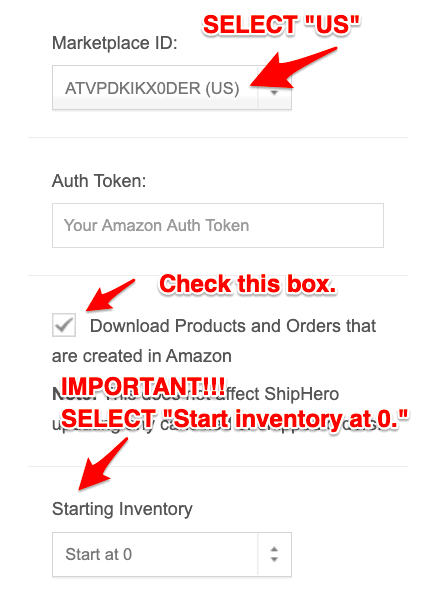
4. Once linked, allow 15-30 minutes for the store's contents to be imported. A successful import will result in the store's SKUs to appear in your Inventory Products page. Please also contact us by chat or support@fbaflexprep.com to let us know you have added a new store so we can ensure your products are mapped correctly.