
How to create Purchase Orders (with CSV Upload)
A Purchase Order (PO) must be created for all inbound shipments for fulfillment or storage.
Requirements to Create Purchase Order
Before creating a Purchase Order, you must do the following:
- Create your SKUs (manually or they must be imported already)
- Create a Vendor associated with your Purchase Order
- Each SKU must be mapped to a Vendor
If the above conditions are met, you can now create a Purchase Order.
How to Create a Purchase Order
1. Go to Purchase Orders - All Purchase Orders
2. Click Upload Purchase Orders 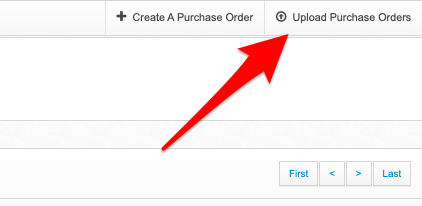
3. Scroll down to find the "Down Purchase Order Template" button.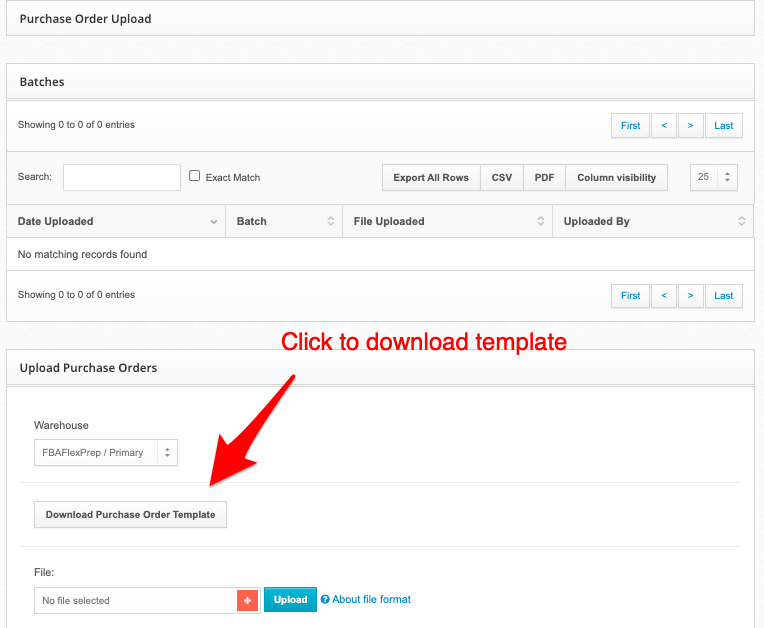
4. Open the template file in Excel or Google Sheet. You'll see a lot of columns, but you won't need all of them:
 The columns you must include are:
- PO Number – This is your Purchase Order name. Enter your work order # if you were provided one.
- Vendor – This is the vendor you created beforehand.
- SKU – Please ensure you enter the SKU name accurately.
- [OPTIONAL] Packer Note – This is a note specific to the SKU that the receiving warehouse associate will see. For example:
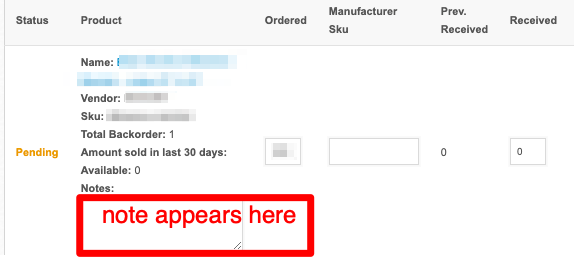
When done editing your spreadsheet file, save as ".csv" format.
5. Add the file by clicking the red "+" sign and then click Upload
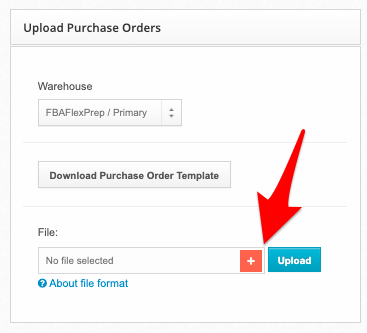
You should see a report indicating your Purchase Order has been processed to indicate a successful upload. Done!